Friday, February 18, 2011

Add Label Control in InfoPath

To add a dynamic label control in InfoPath 2007, we can use the Expression Box in Advanced Controls section.

For example, if you want to insert the current date as a dynamic label in the form,


1. Add Expression Box in the form
2. Insert function Date and Time --> Today
3. To change the Date format - Set the format under Result Section in General Tab of Expression Box Properties

Wednesday, February 16, 2011

Bind SharePoint list filtered data to Infopath dropdown

To bind a SharePoint list data in to a combo box in InfoPath
By default the values of a specific field in a list is bind based on the default view set in the list.

To bind the values based on a different view, below are the steps


1. Form the URL of the list and view
https:////_vti_bin/owssvr.dll?Cmd=Display&List=<YourListID>&XMLDATA=TRUE&View=<YourViewID&gt;

To get your list ID and View ID

List Settings --> Click on the View that you want to bind in the infopath drop down control

Your URL contains the List GUID and View GUID
https:///sites//_layouts/ViewEdit.aspx?List=%7B9B7BA6DE%2D0C1C%2D4832%2D8CC0%2DAF71EC3BAB46%7D&View=%7BF60E1186%2D394F%2D4BF3%2D96CD%2D0CC62C693D85%7D&Source=<>


2. Use the formed URL as your XML data source in InfoPath and your drop down data will be filtered as per your specific view
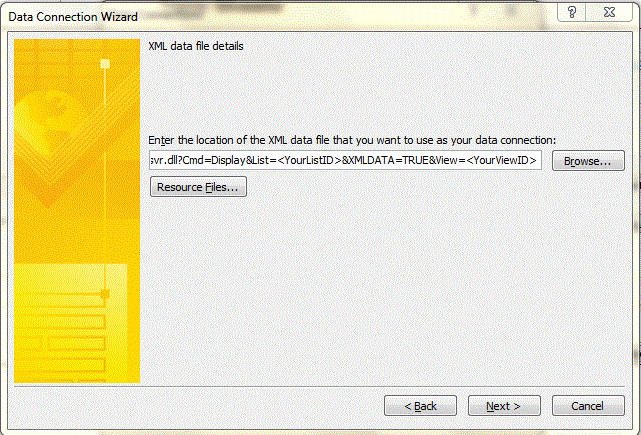
3. In InfoPath Data Connection Wizard, select XML document as your data source and provide the following URL as the XML data file

https:////_vti_bin/owssvr.dll?Cmd=Display&List=<YourListID>&XMLDATA=TRUE&View=<YourViewID>


XML Data source in Infopath

4. Create a data connection and set that to the drop down list in the InfoPath. Now the drop down will list the data based on your specific view