Sunday, June 30, 2019

SharePoint site slow

Using SharePoint 2016 on premise;

Issue: SharePoint sites does not load and stuck on loading.

Error in event viewer of DB server:
SQL Server is not ready to accept new client connections. Wait a few minutes before trying again. If you have access to the error log, look for the informational message that indicates that SQL Server is ready before trying to connect again.


Troubleshooting:

  • Noticed that the CPU is stuck at 99% in SharePoint database server. 
  • Increased  the CPU in database server since the utilization was more.
  • The CPU utilization still fluctuates even after we increased the CPU. 
  • The CPU utilization decreases when we tried killing the SQL Services.
Root Cause:

  • On further analysis, noticed that the database server CPU usage was consumed by search service and crawling activity of a Portal site (1 TB).
  • The incremental search service that was scheduled on weekend did not complete because of the huge database size of  the portal. 
Fix:
  • Stopped the incremental crawl. Stopping the search reduced the CPU consumption is normal and the sites are back
  • The search performance level was set to maximum by default. To avoid maximum CPU consumption by Search service, the performance level value has been set to Reduced.




Thursday, March 28, 2019

Get all web applications and its databases using PowerShell script

Environment: SharePoint 2010/2013

Requirement: To get the list of all WebApplication, Site Collection and its Content databases details

Solution:

Using PowerShell Script

$Today = [string]::Format( "{0:dd-MM-yyyy}", [datetime]::Now.Date ) 
$TranscriptFileName = "C:\\iLink\\AllWeb_ContentDB_$Today.txt" 
Start-Transcript -path $TranscriptFileName
 
[System.Reflection.Assembly]::LoadWithPartialName("Microsoft.SharePoint") > $null 
$OFS = "`r`n" 
$farm = [Microsoft.SharePoint.Administration.SPFarm]::Local 
$websvcs = $farm.Services | where -FilterScript {$_.GetType() -eq [Microsoft.SharePoint.Administration.SPWebService]} 
$webapps = @() 


foreach ($websvc in $websvcs) { 
        #loop through each webapplication 
  foreach ($webapp in $websvc.WebApplications) { 
  #loop through each site collection 
$sites=get-spsite -limit all -WebApplication $webapp.URL 

    foreach ($site in $webapp.Sites) { 
          $ContentDB = Get-SPContentDatabase -site $site.url 
$webappurl = $webapp.URL; 
  Write-Host "Web Application URL:" $webappurl ""$OFS 
$webappname=$webapp.DisplayName 
 
               Write-Host "Web Application Name" -value $webappname  ""$OFS 
               Write-Host "Site URL" -value $site.url     ""$OFS 
               Write-Host "Database Name" -value $ContentDB.Name   ""$OFS 
               Write-Host "Database Size" -value $($ContentDB.DiskSizeRequired /1024/1024)  ""$OFS 
               Write-Host "Date Created" -value $site.RootWeb.Created    ""$OFS 
               Write-Host "OWner" -value $site.Owner        ""$OFS  ""$OFS   ""$OFS 
       } 
      write-host ""$OFS 
     } 
      write-host ""$OFS 
} 
write-host "Request Completed"  ""$OFS
 
Stop-Transcript


Monday, January 21, 2019

Could not start the SharePoint Server Search 16 service

Environment: SharePoint 2016 Enterprise Farm

Issue: Could not start the SharePoint Server Search 16 service in new SharePoint 2016 farm environment. The logon credentials was a search service account (spsearchserv)

Error: Windows could not start the SharePoint Server Search 16 service on Local Computer. Error 5: Access is denied.

Resolution: The issue is because the service was not having enough permission to the local computer. Adding the service account (spsearchserv) to the local Administrators group resolved the issue.

Thursday, January 10, 2019

Manage Web Application grayed out

Environment: SharePoint Server 2016

Issue: After creating a farm, when opened the Central Administration to create a  new Web Application, the page is blank and the menu options are grayed out

Resolution: To resolve this problem, enable the JavaScript feature in Internet Explorer. To do this, follow these steps:
  1. Open Internet Explorer, go to the SharePoint Server 2013 site, press Alt to reveal the Menu bar, click Tools, and then click Internet Options.
  2. On the Security tab, click Custom level.
  3. Scroll down to the Active scripting section, and then select Enable. 

Reference: https://support.microsoft.com/gl-es/help/2752584/please-enable-scripts-and-reload-this-page-error-message-when-you-try 

Friday, May 4, 2018

Configure azure disk caching


The disk that are attached to a VM has a option to set cache preference to manage local cache that are used for read or write operations. This settings can used to improve performance.

There are three cache options:

  • None 
  • Read Only 
  • Read/Write

Following are the steps to set the caching preference using portal

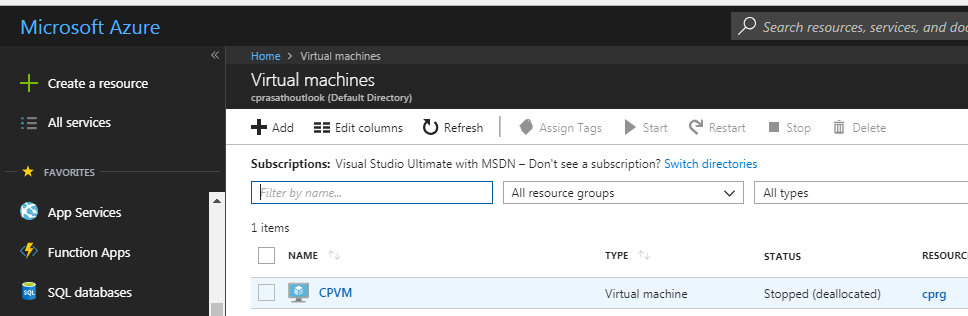
Navigate to the azure portal and click Virtual Machines


x
Azure Virtual Machines

Select the VM and click Disk from the blade

Azure host caching

Click Edit from the menu and select the appropriate Host Caching from the drop down.

Azure host caching

Click Save to save the changes.

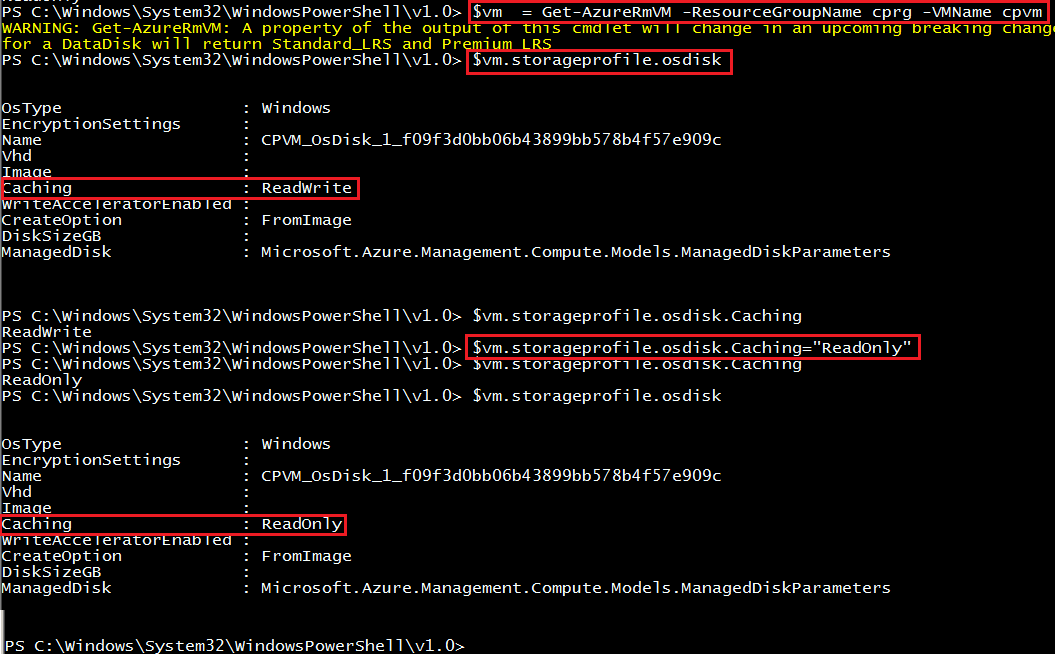
Following are the steps to set the preferences using powershell

Azure Disk Caching in PowerShell

Powershell commands to update the host caching preferences.

Following example sets the caching to None
$vm  = Get-AzureRmVM -ResourceGroupName cprg -VMName cpvm
$vm.storageprofile.osdisk.Caching="None"

Other options
$vm.storageprofile.osdisk.Caching="ReadWrite"
$vm.storageprofile.osdisk.Caching="ReadOnly"


Thursday, April 26, 2018

Filter object using ES6

Scenario:

Assume we have the following object

ingredients = { 'pizza': false, 'basil': true, 'olives': false }

Requirement:

Filter object based on its values using ES6/JS. We need to get the filter the above object which has value set to true.

Solution:

The object can be filtered using filter and map functions.

let filteredIngredients = Object.keys(ingredients)
              .filter((value) => {
                  return ingredients[value] == true;
}).map((ingredient, index) => {
    return ingredient;
              });

console.log(filteredIngredients);

Output:

["pizza", "basil"]

Wednesday, October 4, 2017

Move/Copy subsite to another site collection using PowerShell

Using SharePoint Server 2010;


Requirement:
We have a requirement to migrate SharePoint 2010 to SharePoint 2016. The existing SharePoint server 2010 have a subsite which has more subsites on it and the size is huge. We want to copy or move this subsite to a new site collection before we migrate the entire content to SP2016.

Note: Make sure you backup the existing content database and delete the subsite manually after verify the copy.


Solution:
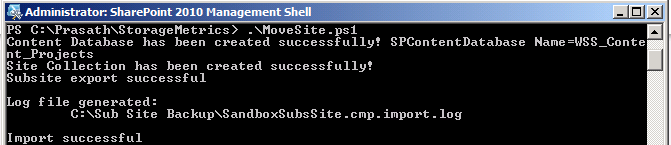
Following powershell script is used to copy the subsite to new site collection which:
  1. Create a new content database
  2. Create a new site collection and attach to the new content database
  3. Export the subsite
  4. Import the subsite to the new site collection


PowerShell Script:

param
(
 $webApp = "http://sp2010-prasath:3333", #Web Application  URL
 $DBServer = "sp2010-prasath", #Database Server to create new content DB
 $DBName = "WSS_Content_Projects", #Content DB Name
 $subSiteURL = "http://sp2010-prasath:3333/Projects/", #Subsite URL
 $backupPath = "C:\\Sub Site Backup\\SandboxSubsSite.cmp", #Backup file
 $newSCURL = "http://sp2010-prasath:3333/sites/projects", #New site collection URL
 $SCOwner = "sp2010-prasath\spadmin", #Site Collection Administrator Account
 $errMessage = ""
)


Try
{
#Create new content database
$errMessage = "creating new Content Database"
$scGUID = New-SPContentDatabase $DBName -DatabaseServer $DBServer -WebApplication $webApp -ErrorAction Stop
Write-host "Content Database has been created successfully!"


#Create new site collection in the new content database
$errMessage = "creating new Site Collection"
$template = Get-SPWebTemplate "STS#0"  -ErrorAction Stop
$newSite = New-SPSite -Url $newSCURL -OwnerAlias $SCOwner -Template $template -ContentDatabase $scGUID.Id -ErrorAction Stop
Write-host "Site Collection has been created successfully!"


#Export/Backup existing subsite
$errMessage = "exporting subsite"
$export = Export-SPWeb -Identity $subSiteURL -Path $backupPath -IncludeUserSecurity -IncludeVersions all -HaltOnError -Force -ErrorAction Stop
Write-host "Subsite export successful"


#Import subsite to new site collection
$errMessage = "importing subsite to new Site Collection"
Import-SPWeb $newSCURL -Path $backupPath -ErrorAction Stop
Write-host "Import successful"
}
Catch
{
Write-host "Error occurred while" $errMessage
Write-host "Error Message:" $_.Exception.Message
}


Run the script in PowerShell

subsite to site collection