Thursday, February 14, 2013

Insert a row into a list using JQuery and Web Services


Requirement: Insert a row in the list using jQuery and Web Services.

Variables (not initiating here, as the values are dynamically generated by another method)
   - allTeamMembers (user name)
   - firstSaturday (date)
Project_Name is a lookup field, the values for lookup field should be the combination of ID of item in the Lookup list and the lookup value

$().SPServices({
  operation: "UpdateListItems",
  async: false,
  batchCmd: "New",
  listName: "Resource Allocation List",
  valuepairs: [["pcompleted",0],["TeamMember",allTeamMembers],["Title","Dummy Entry"],["Week_Ending",firstSaturday],["Project_Name","20;#Others"]],
  completefunc: function(xData, Status) {
msgData = xData.responseText;
  isError = msgData.indexOf("ErrorText");
            if (isError > 0) {
                alert("Error creating missing entries!");
                errorOccured = true;

            }
  }
  });

Retrieve column values from a list using JQuery and Web Services


Requirement: To get the values of "Team Member" field from "User Allocation list" list with a filter condition.

Solution:
Following is the javascript code to retrieve the column values from a list using web services.

function getCompletedEmployeesList(){
var date = new Date();
var aTmp = new Array();

var firstDay = new Date(date.getFullYear(), date.getMonth(), 1);
firstDay  =  firstDay.getFullYear()+"-"+(firstDay.getMonth()+1)+"-"+firstDay.getDate();
var lastDay = new Date(date.getFullYear(), date.getMonth() + 1, 0);
lastDay =  lastDay.getFullYear()+"-"+(lastDay.getMonth()+1)+"-"+lastDay.getDate();

$().SPServices({
operation: "GetListItems",
async: false,
listName: "User Allocation List",
CAMLViewFields: "<ViewFields Properties='True' />",
CAMLQuery: "<Query><Where><And><Neq><FieldRef Name='ID' /><Value Type='Counter'>0</Value></Neq><And><Leq><FieldRef Name='Week_x002d_Ending' /><Value IncludeTimeValue='FALSE' Type='DateTime'>"+lastDay +"</Value></Leq><Geq><FieldRef Name='Week_x002d_Ending' /><Value IncludeTimeValue='FALSE' Type='DateTime'>"+firstDay  +"</Value></Geq></And></And></Where></Query>",
completefunc: function (xData, Status) {
$(xData.responseXML).SPFilterNode("z:row").each(function() {
var teamMember = $(this).attr("ows_TeamMember");
aTmp.push(teamMember);
});
}
});
return aTmp;
}

Monday, January 28, 2013

Display current site name in Content Editor Web Part using JavaScript

Add the following script in a Content Editor Web Part


<script language="javascript" type="text/javascript">
_spBodyOnLoadFunctionNames.push("GetSiteName");

function GetSiteName(){
  var SiteName = document.getElementById('ctl00_PlaceHolderSiteName_onetidProjectPropertyTitle').innerHTML;//get the ID from 'view source' page
document.getElementById('lblsitename').innerHTML = SiteName;
}
</script>
<html>
<label id="lblsitename"></label>
</html></div>


Friday, January 18, 2013

Date Picker control in Content Editor Web Part


<html lang="en">
<head>
<style >
div.ui-datepicker{
 font-size:11px;
}
</style>
  <title>jQuery UI Datepicker - Default functionality</title>
  <link rel="stylesheet" href="http://code.jquery.com/ui/1.10.0/themes/base/jquery-ui.css" />
  <script src="http://code.jquery.com/jquery-1.8.3.js"></script>
  <script src="http://code.jquery.com/ui/1.10.0/jquery-ui.js"></script>

  <script>

  $(function() {
    $( "#fromdatepicker" ).datepicker();
    $( "#todatepicker" ).datepicker();
  });
$(function() {
$("#btnFilter").click(function() {
var startDate = $("#fromdatepicker").datepicker("getDate");
startDate  =  startDate.getFullYear()+"-"+(startDate.getMonth()+1)+"-"+startDate.getDate();

var endDate = $("#todatepicker").datepicker("getDate");
endDate  =  endDate.getFullYear()+"-"+(endDate.getMonth()+1)+"-"+endDate.getDate();

alert(startDate +"-"+ endDate);
});
});
  </script>
</head>
<body>

<p>
From Date: <input type="text" id="fromdatepicker" style="font-size:11px"  />
To Date: <input type="text" id="todatepicker" style="font-size:11px"  /> &nbsp;&nbsp;&nbsp;
<input type="button" id="btnFilter" value="Generate Report">
</p>


</body>
</html>

Thursday, January 3, 2013

Create a list view which shows the items of a specific folder

Requirement: To create a view to list out all the items in a specific folder named 'Archived' from a list.

Solution:
1. Open the site in SharePoint Designer and navigate to the list view page
2. Convert the view to XSLT view
3. Create a new data source connection from the list by clicking on Copy and Modify menu

XSLT View
4. Provide name for the data source in the general tab and set the Filters, fields and Sort conditions. Make sure that you select RecursiveAll options from the Scope drop down.

XSLT View RecursiveAll

5. Click Ok

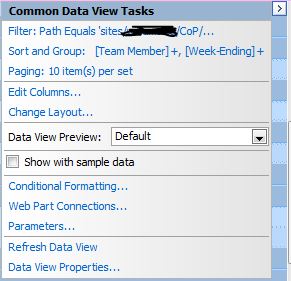
6. In Design View, click the Common Data View Tasks menu for the Web Part
Common Data View Tasks

7. Set the following filter condition. (Provide the relative URL of the folder view)
Path Equals sites/XXXX/SiteName/Lists/ListName/FolderName

8. Click Ok to exit

9. Save the file


Get the URL of the current page from xslt?

Requirement: The requirement is to create a column in data view web part with edit icon that should navigate to edit form.

Solution: XSL variable $PagePath is used to get the current page's URL.

Code:

<a onfocus="OnLink(this)" HREF="{$URL_Edit}?ID={@ID}&amp;Source={$PagePath}"><img border="0" src="/_layouts/images/edititem.gif" alt="" /></a>

Thursday, December 27, 2012

Count/sum rows grouped by in XSLT Dataview WebPart

Scenario: Converted a list view to XSLT View using SharePoint Designer and grouped the list by 2 columns "Created By"(built in people and column group) and "WeekEnding" (date field).

Requirement: To display the count of each item that is grouped by "Week Ending" and "Created By" column. Also sum of "% of Week" column with the same condition.

Grouping in XSLT Dataview WebPart


    Solution:


1. Declare param <xsl:param name="usernamegroup"/> after the following lines <xsl:template name="dvt_1.groupheader0"> and <xsl:template name="dvt_1.groupheader1">


2. Search for the following line and add xsl:with-param after it
<xsl:call-template name="dvt_1.groupheader1"> 

<xsl:with-param name="usernamegroup" select="substring-after(substring-before(substring-after(@Author, 'ID='), '&lt;'), '&gt;')"/>
I've added it in 2 locations.

3. Added the following line of code to display the count in header row(refer screenshot)
<xsl:value-of select="count(/dsQueryResponse/Rows/Row[(@WeekEnding=$fieldvalue) and (substring-after(substring-before(substring-after(@Author, 'ID='), '&lt;'), '&gt;')=$usernamegroup)]/@Week_Ending)">

4. Added the following line of code to display the sum in the header row(refer screenshot)
<xsl:value-of select="format-number(string(sum(/dsQueryResponse/Rows/Row[(@WeekEnding=$fieldvalue) and (substring-after(substring-before(substring-after(@Author, 'ID='), '&lt;'), '&gt;')=$usernamegroup)]/@PercentageOfWeek)),'#,##0%;-#')" />