To bind a SharePoint list data in to a combo box in InfoPath
By default the values of a specific field in a list is bind based on the default view set in the list.
To bind the values based on a different view, below are the steps
1. Form the URL of the list and view
https:////_vti_bin/owssvr.dll?Cmd=Display&List=<YourListID>&XMLDATA=TRUE&View=<YourViewID> ;
To get your list ID and View ID
List Settings --> Click on the View that you want to bind in the infopath drop down control
Your URL contains the List GUID and View GUID
https:///sites//_layouts/ViewEdit.aspx?List=%7B9B7BA6DE%2D0C1C%2D4832%2D8CC0%2DAF71EC3BAB46%7D&View=%7BF60E1186%2D394F%2D4BF3%2D96CD%2D0CC62C693D85%7D&Source =<>
2. Use the formed URL as your XML data source in InfoPath and your drop down data will be filtered as per your specific view
3. In InfoPath Data Connection Wizard, select XML document as your data source and provide the following URL as the XML data file
https:////_vti_bin/owssvr.dll?Cmd=Display&List=<YourListID>&XMLDATA=TRUE&View=<YourViewID>

4. Create a data connection and set that to the drop down list in the InfoPath. Now the drop down will list the data based on your specific view
By default the values of a specific field in a list is bind based on the default view set in the list.
To bind the values based on a different view, below are the steps
1. Form the URL of the list and view
https://
To get your list ID and View ID
List Settings --> Click on the View that you want to bind in the infopath drop down control
Your URL contains the List GUID and View GUID
https://
2. Use the formed URL as your XML data source in InfoPath and your drop down data will be filtered as per your specific view
3. In InfoPath Data Connection Wizard, select XML document as your data source and provide the following URL as the XML data file
https://
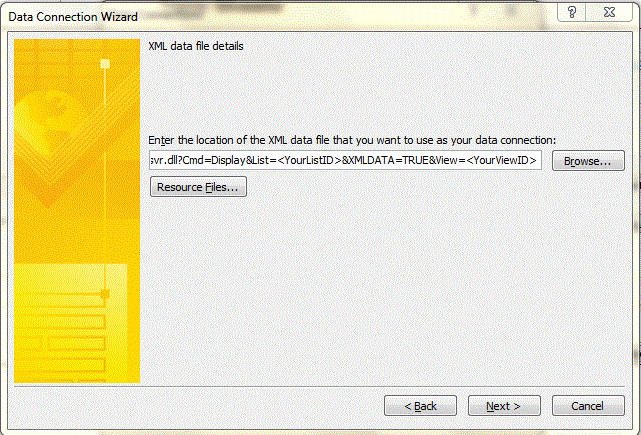
4. Create a data connection and set that to the drop down list in the InfoPath. Now the drop down will list the data based on your specific view


