Monday, September 7, 2015

Retrieve Recurrence Data programmatically from a calendar list

Environment: SharePoint 2013 Enterprise


Requirement: Programmatically get the recurrence data from a calendar list.


This article is about how to get the recurrence data programmatically from a calendar list.
In this example the recurrence event is set to occur weekly every Wednesday with no end date.
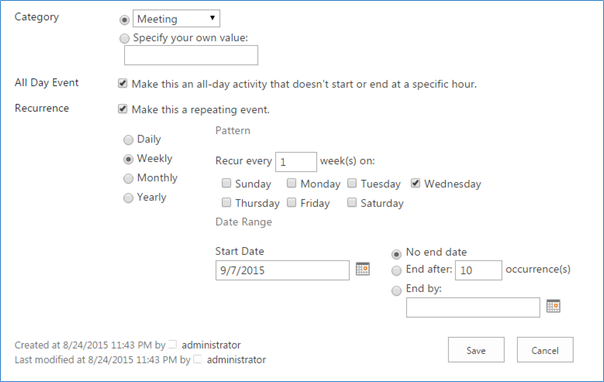

Set Recurrence Event


Following the view of the calendar list.


Calendar View - Recurrence Event

CAML Query

Following is the CAML query that is used to retrieve the recurrence data.
Query =
@"<Where>
<DateRangesOverlap>
    <FieldRef Name='EventDate' />
     <FieldRef Name='EndDate' />
      <FieldRef Name='RecurrenceID' />
<Value Type='DateTime'><Month /></Value>
</DateRangesOverlap>
</Where>
<OrderBy>
<FieldRef Name='EventDate' Ascending='True' />
</OrderBy>",
ViewFields = "<FieldRef Name='Title' />
<FieldRef Name='EventDate' />
<FieldRef Name='EndDate' />
<FieldRef Name='fRecurrence' />
<FieldRef Name='RecurrenceData' />
<FieldRef Name='Location' />",
ExpandRecurrence = true,
CalendarDate = DateTime.Now


ExpandRecurrence property is set to true to specify whether to expand recurrent events in the calendar view.


CalendarDate property is sets the start date from the when the events are retrieved

Source Code

SPSecurity.RunWithElevatedPrivileges(delegate()
{
using (SPSite spsite = new SPSite("http://halvm99/"))
{
using (SPWeb web = spsite.OpenWeb())
{
SPList list = web.Lists["MyCalendar"];
SPQuery query = new SPQuery();
var eventsQuery = new SPQuery
         {           
Query =
@"<Where>
<DateRangesOverlap>
    <FieldRef Name='EventDate' />
     <FieldRef Name='EndDate' />
      <FieldRef Name='RecurrenceID' />
<Value Type='DateTime'><Month /></Value>
</DateRangesOverlap>
</Where>
<OrderBy>
<FieldRef Name='EventDate' Ascending='True' />
</OrderBy>",
ViewFields = "<FieldRef Name='Title' />
<FieldRef Name='EventDate' />
<FieldRef Name='EndDate' />
<FieldRef Name='fRecurrence' />
<FieldRef Name='RecurrenceData' />
<FieldRef Name='Location' />",
ExpandRecurrence = true,
CalendarDate = DateTime.Now
};
SPListItemCollection listItems;
listItems = list.GetItems(eventsQuery);
foreach (SPListItem item in listItems)
{
               //Returns the next recurrence date
Console.WriteLine("Event: " + item["EventDate"].ToString());  
//Returns recurrence data
Console.WriteLine("Recurrence Data: " + item["RecurrenceData"]);


          }
}
          }
      });

Recurrence Data

The recurrence data can be retrieved by Day, week, month or year. Specify the value type as per the requirement. CalendarDate property value is considered as start date.
Following are the Value Types
//Today – Returns events for the current day
// Week – Retrieves events across the week
// Month – Gets all events for the current month
// Year – Retrieves events that occur in the year  
Following is the output of the above code when the value is passed as Month which gets all the events for the month.


<Value Type='DateTime'><Month /></Value>


Event: 9/9/2015 12:00:00 AM
Recurrence Data: <recurrence><rule><firstDayOfWeek>su</firstDayOfWeek><repeat><weekly we="TRUE" weekFrequency="1" />
</repeat><repeatForever>FALSE</repeatForever></rule></recurrence>
Event: 9/16/2015 12:00:00 AM
Recurrence Data: <recurrence><rule><firstDayOfWeek>su</firstDayOfWeek><repeat><weekly we="TRUE" weekFrequency="1" />
</repeat><repeatForever>FALSE</repeatForever></rule></recurrence>
Event: 9/23/2015 12:00:00 AM
Recurrence Data: <recurrence><rule><firstDayOfWeek>su</firstDayOfWeek><repeat><weekly we="TRUE" weekFrequency="1" />
</repeat><repeatForever>FALSE</repeatForever></rule></recurrence>
Event: 9/30/2015 12:00:00 AM
Recurrence Data: <recurrence><rule><firstDayOfWeek>su</firstDayOfWeek><repeat><weekly we="TRUE" weekFrequency="1" />
</repeat><repeatForever>FALSE</repeatForever></rule></recurrence>

Following is the output of the above code when the value is passed as Week which gets all the events for the week.


<Value Type='DateTime'><Week /></Value>


Event: 9/9/2015 12:00:00 AM                                                    
Recurrence Data: <recurrence><rule><firstDayOfWeek>su</firstDayOfWeek><repeat><weekly we="TRUE" weekFrequency="1" />
</repeat><repeatForever>FALSE</repeatForever></rule></recurrence>                 
Sunday, August 30, 2015

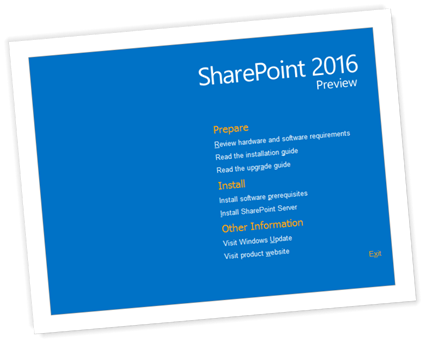
Microsoft releases IT Preview of SharePoint 2016

Earlier this year, Microsoft announced their vision, strategy, timeline and investment in three major areas: familiar and intuitive user experiences, cloud-inspired infrastructure with hybrid at the core and robust security and compliance for SharePoint Server 2016. On that track, Microsoft released the SharePoint Server 2016 "IT Preview" version, which offers a first look at the various improvements in the upcoming version of SharePoint. It includes Integration of cloud services with on-premises with converged codebase between SharePoint on-premises and cloud. SharePoint Server 2016 IT Preview has been designed, developed, and tested with the Microsoft Software as a Service (SaaS) strategy at its core.


SharePoint 2016 IT Preview

What’s new?

For End user:  In addition to a consistent cross-screen experience, SharePoint Server 2016 provides the latest technologies and standards for mobile push, information synchronization, responsive design and touch mobile experience.


IT Pros: SharePoint Server 2016 provides new role based configuration wizard and capabilities that enable device-specific targeting of content. This feature brings flexibility in terms of being able to use SharePoint on various hardware shapes, sizes, and capabilities based on the different roles that you have.  The most welcome improvement is minimal patches with Zero Downtime.


Developer: Developers can now extend applications across on-premises and Office 365 as Office 365 API is back to SharePoint Server 2016 on premises. Developer can create applications using common consent, subscription apps and a number of different capabilities that they’re familiar within the cloud. “Build once and deploy twice” feature enables developers to build one application and deploy on both SharePoint online and on-premises.


To get started, download the preview


For more information about the new features, please refer to the following articles

Wednesday, August 19, 2015

Create a common visual studio project to develop different versions of SharePoint solutions

Introduction

The following sample is to illustrate how to create a common visual studio project to develop different versions of SharePoint solutions. In some case we may need to develop a solution that would to be deployed in different versions of SharePoint. In this article we discuss about developing a common solution using Visual studio that can run for both SharePoint 2010 and 2013.

Steps

1.      Launch Visual Studio 2012 from a machine where SharePoint 2010 is installed
2.      Click New project
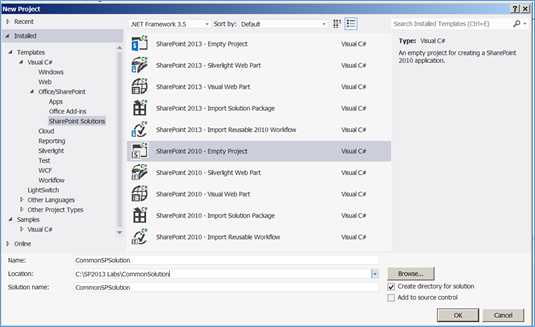
3.      Select .NET Framework 3.5 and select SharePoint 2010 – Empty Project
4.      Provide the name, solution name and click Ok
Create SharePoint Empty Project
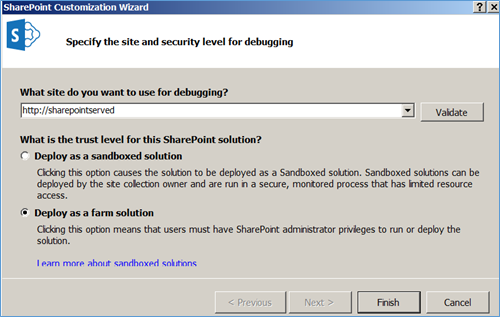
5.      In SharePoint Customization Wizard, provide the local SharePoint web application URL and deploy as farm solution
Deploy as farm solution
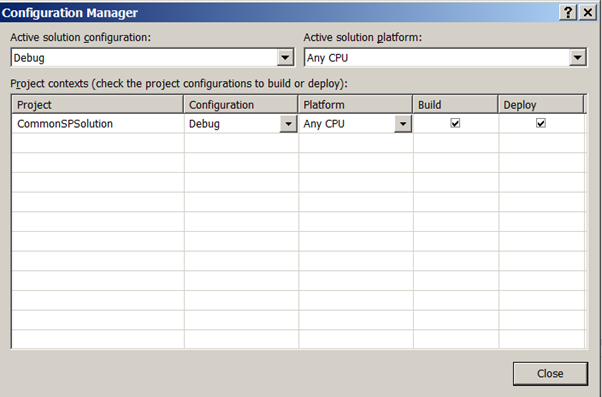
6.      Click Solutions Configuration drop down and select Configuration Manager
Configuration Manager
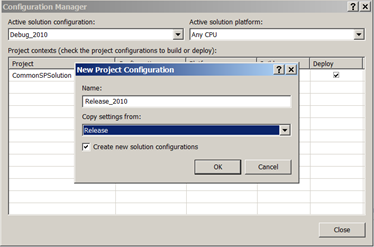
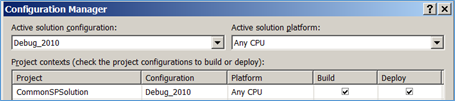
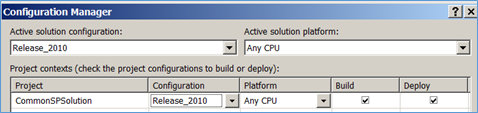
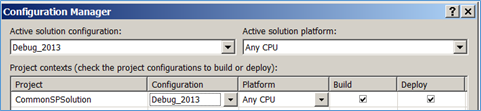
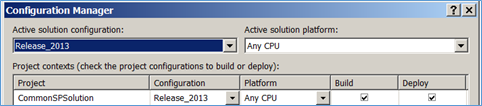
7.      Make sure the Solution has 4 configurations Debug_SP2010, Release_SP2010, Debug_SP2013 and Release_SP2013. Copy settings from respective modes.
Configuration settings
Debug 2010 Configuration Manager
Release 2010 Configuration Manager
Debug 2013 Configuration Manager
Release 2013 Configuration Manager
All added configurations
All Configurations
8.      Right click the Project and Select properties.
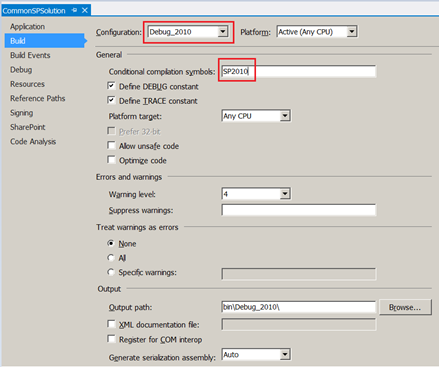
9.      Select Build section, select “Debug_SP2010” from Configuration.
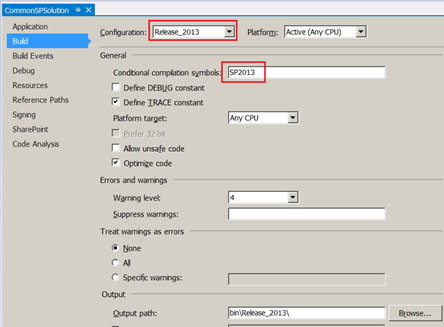
10.   Enter the value as “SP2010” for “Conditional Compilation Symbols” field. Give the same value for “Release_SP2010” also. Similarly provide “SP2013” for “Debug_SP2013” and “Release_SP2013” configurations.
Build information
Build information
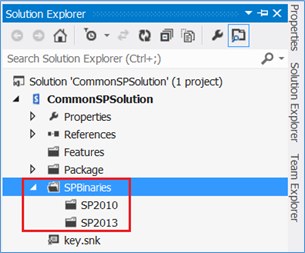
11.   Right click the project and create a folders to store the assembly files of both the versions in respective folders.
Create Folders for binaries
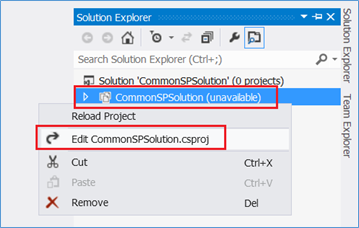
12.   Right click the project and click unload project
13.   Right click the project again and click Edit project file
Edit solutions files
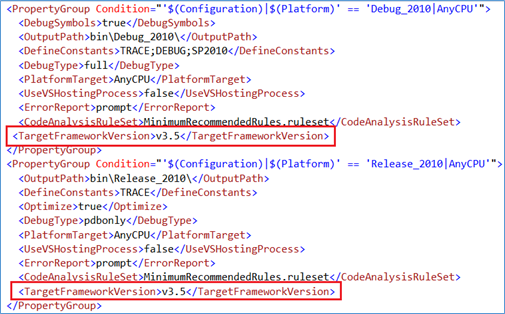
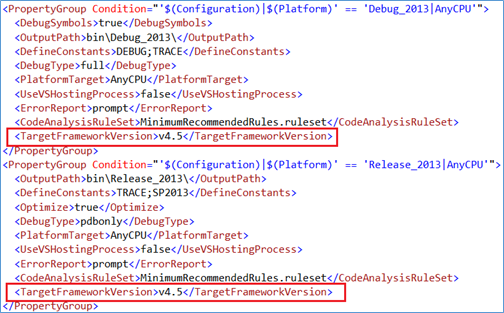
14.   Add <TargetFrameworkVersion>v3.5</TargetFrameworkVersion> under <PropertyGroup></PropertyGroup> for both Debug_2010 and Release_2010 configurations. Also add
<TargetFrameworkVersion>v4.5</TargetFrameworkVersion> for both Debug_2013 and Release_2013 configurations
Set Target Framework version
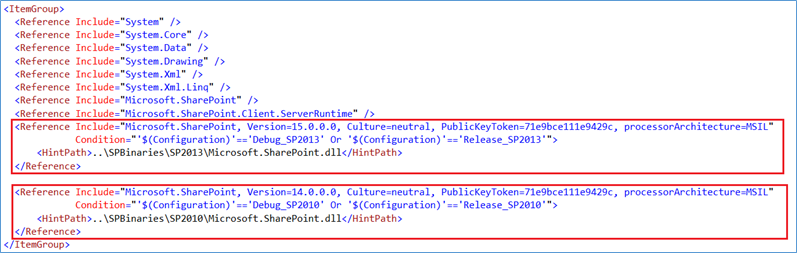
15.   Add Reference to the appropriate assemblies to load from respective folders during compilation.
Add references
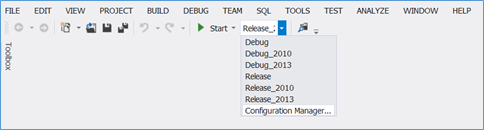
16.   Add all required artifacts to the project and compile/build by setting the configuration manager to appropriate build version to get respective SharePoint solutions.
Configuration manager

Tuesday, August 4, 2015

The underlying connection was closed: Could not establish trust relationship for the SSL/TLS secure channel

Scenario:


Using SAML Authentication in SharePoint 2013 and was trying to access a service application from SSL enabled Portal.
Exported the service application security certificate and imported into SharePoint Trusted Root Certificate authority


Problem:


Following is the error message when trying to connect to service application from SharePoint.

Resolution:

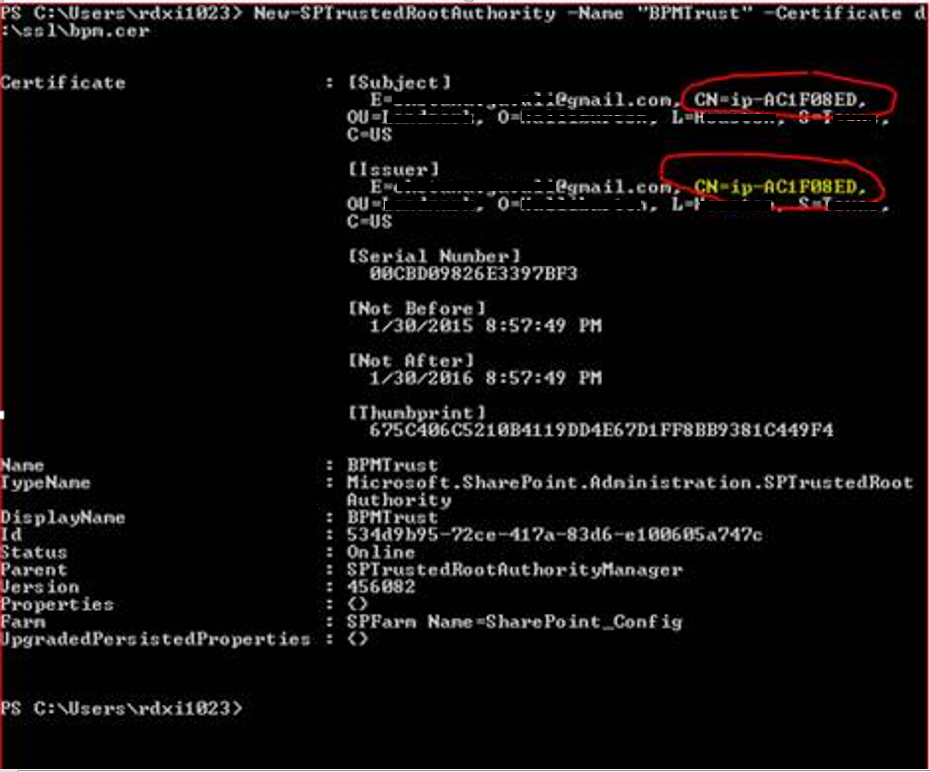
The imported certificate is having some validation error. The problem was incorrect host name used in certificates.
We were accessing the URL using the IP and the certificate is using the server name as ip-AC1F08ED. Either we should have service application URL with fully qualified domain name or the certificate issue should point to the server IP.


Certificate details


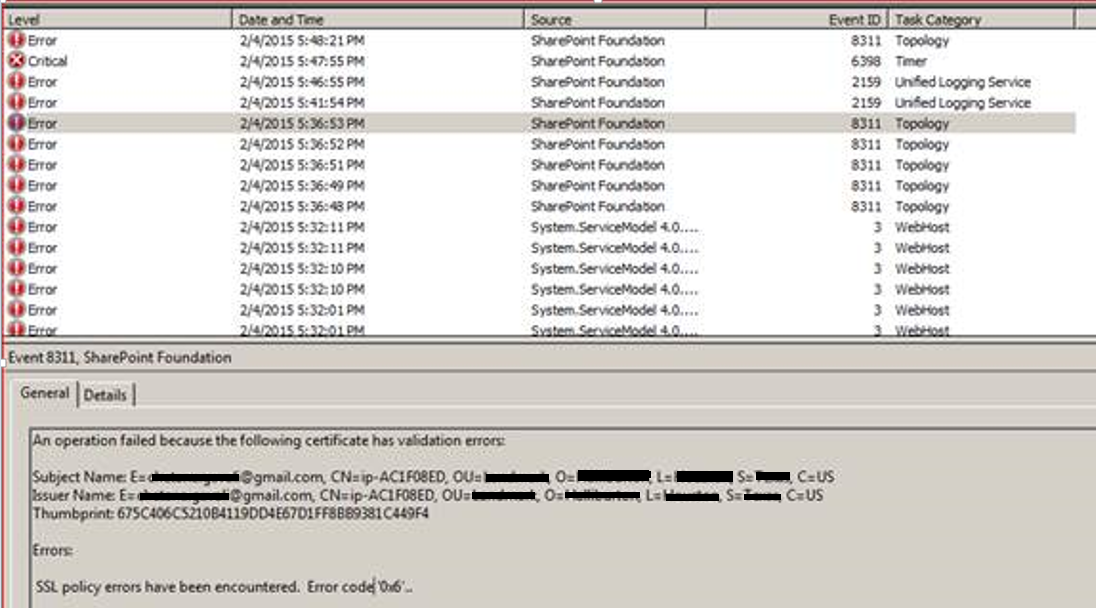
Following error in event viewer.
Error in Event viewer