Thursday, January 3, 2013

Create a list view which shows the items of a specific folder

Requirement: To create a view to list out all the items in a specific folder named 'Archived' from a list.

Solution:
1. Open the site in SharePoint Designer and navigate to the list view page
2. Convert the view to XSLT view
3. Create a new data source connection from the list by clicking on Copy and Modify menu
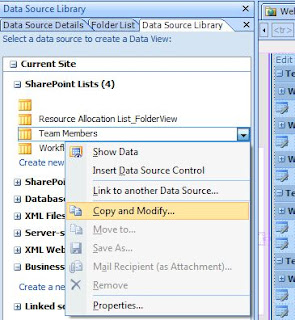
XSLT View
4. Provide name for the data source in the general tab and set the Filters, fields and Sort conditions. Make sure that you select RecursiveAll options from the Scope drop down.

XSLT View RecursiveAll

5. Click Ok

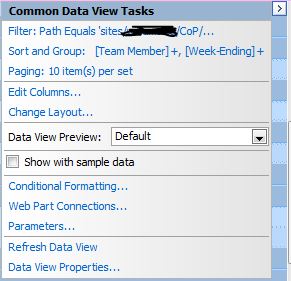
6. In Design View, click the Common Data View Tasks menu for the Web Part
Common Data View Tasks

7. Set the following filter condition. (Provide the relative URL of the folder view)
Path Equals sites/XXXX/SiteName/Lists/ListName/FolderName

8. Click Ok to exit

9. Save the file


Get the URL of the current page from xslt?

Requirement: The requirement is to create a column in data view web part with edit icon that should navigate to edit form.

Solution: XSL variable $PagePath is used to get the current page's URL.

Code:

<a onfocus="OnLink(this)" HREF="{$URL_Edit}?ID={@ID}&amp;Source={$PagePath}"><img border="0" src="/_layouts/images/edititem.gif" alt="" /></a>

Thursday, December 27, 2012

Count/sum rows grouped by in XSLT Dataview WebPart

Scenario: Converted a list view to XSLT View using SharePoint Designer and grouped the list by 2 columns "Created By"(built in people and column group) and "WeekEnding" (date field).

Requirement: To display the count of each item that is grouped by "Week Ending" and "Created By" column. Also sum of "% of Week" column with the same condition.

Grouping in XSLT Dataview WebPart


    Solution:


1. Declare param <xsl:param name="usernamegroup"/> after the following lines <xsl:template name="dvt_1.groupheader0"> and <xsl:template name="dvt_1.groupheader1">


2. Search for the following line and add xsl:with-param after it
<xsl:call-template name="dvt_1.groupheader1"> 

<xsl:with-param name="usernamegroup" select="substring-after(substring-before(substring-after(@Author, 'ID='), '&lt;'), '&gt;')"/>
I've added it in 2 locations.

3. Added the following line of code to display the count in header row(refer screenshot)
<xsl:value-of select="count(/dsQueryResponse/Rows/Row[(@WeekEnding=$fieldvalue) and (substring-after(substring-before(substring-after(@Author, 'ID='), '&lt;'), '&gt;')=$usernamegroup)]/@Week_Ending)">

4. Added the following line of code to display the sum in the header row(refer screenshot)
<xsl:value-of select="format-number(string(sum(/dsQueryResponse/Rows/Row[(@WeekEnding=$fieldvalue) and (substring-after(substring-before(substring-after(@Author, 'ID='), '&lt;'), '&gt;')=$usernamegroup)]/@PercentageOfWeek)),'#,##0%;-#')" />

Wednesday, November 7, 2012

Remove User ID of a People and Group column when exporting SharePoint list to Excel


This is a VBA code to remove the user IDs from the exported spreadsheet. Apply the following code and run the macro to remove all User IDs from the spreadsheet

Sub RemoveUserIDs()
           'run against rows 1 to 10, if you want more change the start and end below
           start_of_range = 2
           end_of_range = ActiveSheet.UsedRange.Rows.Count

           'currently changes cells in colum A if you want B change to 2, C to 3 etc etc
            colum_start = 1

For col = start_of_range To ActiveSheet.UsedRange.Columns.Count
    For t = start_of_range To end_of_range
    newstring = ""
          For i = 1 To Len(Cells(t, col))
               If Not IsNumeric(Mid(Cells(t, col), i, 1)) And Mid(Cells(t, col), i, 1) <> "#" Then
                    newstring = newstring & _
                    Mid(Cells(t, col), i, 1)
               End If
         Next i
     newstring = Replace(newstring, ";;", ", ")
     newstring = Replace(newstring, ";", "")
     Cells(t, col).Value = newstring
    Next t
Next col
    ActiveWorkbook.Save
End Sub

Tuesday, November 6, 2012

Access denied. You do not have permission to perform this action or access this resource.

Error:
Access denied. You do not have permission to perform this action or access this resource.

(and)

<!-- #RENDER FAILED -->

Scenario: 

We have created a Custom List and added the list as a Web Part in the site's home page, grouped by 'Status' column. When the user approves an item under a Status 'Pending Cost Approval', the designer workflow will update the Status column to 'Cost Approved'. The order of action is

1. Select Approve/Reject menu for an item from the Web Part 
2. Select Approve, and click OK 
3. After approval, the page is redirected to the home page.
The issue is, when there is only one item in grouped under 'Pending Cost Approval' and since the item is getting moved to 'Cost Approval' status after approval, we are getting "Access denied. You do not have permission to perform this action or access this resource." error. No issues when there are more items in 'Pending Cost Approval' status. Attached the screen shot. Is there any workaround for this?
Access Denied error

On different version of browser, we received 'Render failed' error.
Render failed error

Resolution
I'm able to resolve this issue with the following workaround.
Set the Groupings to Expanded in the view and add the following script in a content editor web part in the same page.
<script src="/Documents/jquery-1.8.2.min.js" type= "text/javascript">
</script>
<script type="text/javascript">
function collapseGroups() {
$("img[src='/_layouts/images/minus.gif']:visible").parent().click();
}

_spBodyOnLoadFunctionNames.push("collapseGroups");
</script>


Reference: http://www.go4sharepoint.com/Forum/render-failed-error-list-view-2203.aspx

A duplicate name "" was found

Issue: Received an error when creating a site from  a custom site template.

Error: A duplicate name "Responsible" was found.

Resolution:

The issue was with the column names in a list of the site we created a custom template from. I initially created a Text field column with the name 'Responsible', later we created another Responsible column with People and group type after renaming the existing column to 'Contributors'. This actually led to an error when we created a new site using this site template. The issue was identified by renaming the site template from sitename.stp to sitename.cab > extact the cab file > open the manifest file.

Noticed that the internal name of 'Contributor' column was 'Responsible' and the display name of 'Responsible' column was 'Responsible'.

Deleting the 'Contributor' column and recreated with different internal name resolved the issue.

Monday, October 15, 2012

Read Multiple lines of Text field value using JQuery


To read a value of multiple lines of text from a Edit Form or New Form. Assume Comments is the field name

<script  language="javascript" type="text/javascript" >
function PreSaveAction()
{
   var Comments = getTagFromIdentifierAndTitle("textarea","TextField","Comments");  

   var CommentsText = RTE_GetEditorDocument(Comments.id);
   var CommentsTextValue = CommentsText .body.innerText;
}

function getTagFromIdentifierAndTitle(tagName, identifier, title) 
{  
    var len = identifier.length;  
    var tags = document.getElementsByTagName(tagName);  
    for (var i=0; i < tags.length; i++)
    {  
        var tempString = tags[i].id;  
        if (tags[i].title == title && (identifier == "" || tempString.indexOf(identifier) == tempString.length - len))
        {  
            return tags[i];  
        }  
    }  
    return null;  
} 

</script>

Additionally, use the following code to read the selected value of a drop down.

var val =  $("select[title='ChoiceFieldName']").val();